Dictate First Drafts That Sound Like You
Keep your own phrasing and rhythm as you edit a dictated draft.

In this article
Every dictation tool on the market is lying to you about the same thing. They promise “natural-sounding text” and then hand you output that reads like it was written by a corporate chatbot. The filler words are gone, sure, but so is your voice, your rhythm, every stylistic choice that makes your writing yours.
The problem isn’t speech-to-text accuracy. The problem is that most tools treat post-processing as “make it sound professional” instead of “make it sound like the person who said it.”
That’s a solvable problem, if the tool’s polish is built to preserve your voice instead of flattening it.
If you’re new to EnviousWispr, the getting started guide walks you through setup in under two minutes.
Why Most Dictation Tools Strip Your Voice
Standard speech to text treats your words as data to be cleaned. The goal is “correct” text: grammatically inoffensive, uniformly punctuated, utterly generic. That’s fine for transcribing a meeting. It’s terrible for writing.
Writers don’t want correct. They want theirs. Short fragments for emphasis. Em dashes instead of semicolons. A specific way of handling dialogue tags, or paragraphs that breathe a certain way. The raw transcription from any speech model is a starting point, not a finished product. Most tools flatten that starting point into something generic.
That’s the gap EnviousWispr fills.
How EnviousWispr Keeps Your Voice Intact
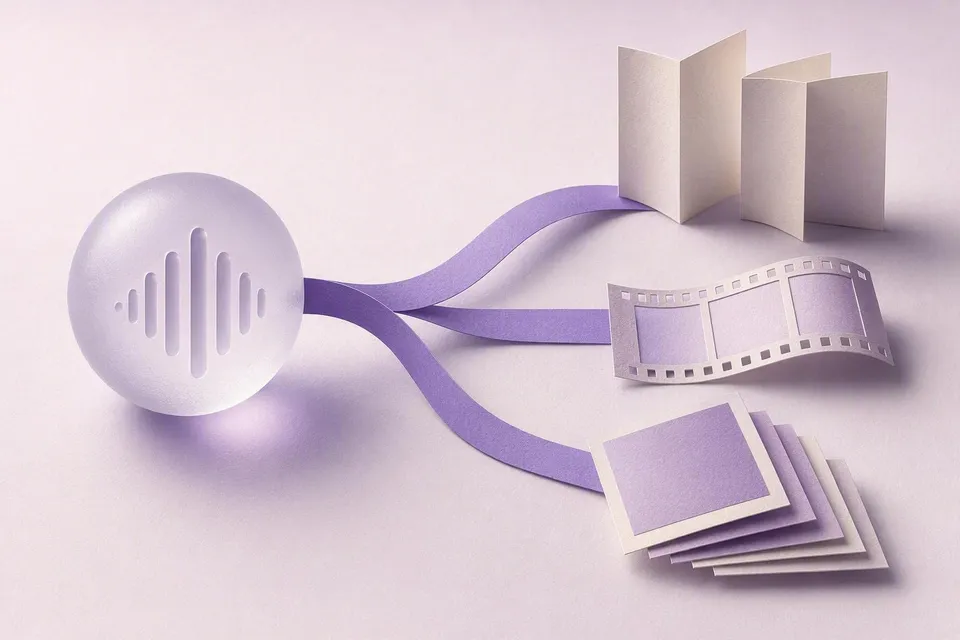
EnviousWispr splits the work into two stages: transcription and post-processing. Transcription runs locally on your Mac using on-device speech recognition via Core ML. That gives you accurate raw text. Post-processing is where your voice gets preserved.
Here’s what makes the difference for writers:
- On-device polish that keeps your voice. Your local LLM (Apple Intelligence, EG-1, Ollama) or a cloud API (OpenAI, Gemini) cleans up the raw transcription: filler words go, punctuation gets fixed, structure tightens, but your contractions, sentence fragments, and rhythm stay intact. The polish is tuned for natural-sounding output, not corporate sameness.
- An editor, not a rewriter. The polish is built to edit, not reword. It preserves your meaning, tone, and phrasing, and never translates or rewrites what you said. Your em dashes, your intentional fragments, your rhythm survive the cleanup.
It also adapts to length: a quick aside stays a clean line, while a longer piece comes back as clean, readable prose. You don’t switch anything between drafting and client-facing work; the polish keeps your voice either way.
For a deeper look at how the transcription and post-processing pipeline connects, see the How It Works page.
Step-by-Step: Setting Up a Dictation Writing Workflow
Here’s how to go from zero to dictating first drafts that actually sound like your writing.
Step 1: Install EnviousWispr
Download EnviousWispr free. Drag the .dmg to Applications. On first launch, macOS will ask for microphone and accessibility permissions; grant both.
No account. No API key. No subscription. It’s free.
Step 2: Set Up Polish
The speech model downloads automatically on first launch. Once that’s done (a few minutes), open EnviousWispr’s settings and pick your polish engine. On macOS 26 and later, Apple Intelligence is on by default; on earlier macOS, choose Ollama to keep it on-device, or add an OpenAI or Gemini key. The polish keeps your voice intact while cleaning up filler words and punctuation, and it works across whatever you’re writing:
- Novels, blog drafts, and freewriting keep your natural voice, contractions, and sentence rhythm.
- Newsletters and articles come back as clean, readable prose with a light touch.
- Longer, more formal pieces get tightened structure and proper paragraphs.
- Your stylistic choices (em dashes over semicolons, intentional fragments) survive, because the polish edits rather than rewrites.
There’s nothing to configure. The polish reads what you said and matches it.
Post-processing can run on-device (Apple Intelligence, EG-1, Ollama) or through cloud APIs (OpenAI, Gemini). Your raw dictation never leaves your device unless you explicitly configure an external API.
Step 3: Dictate Your First Draft
Hold your keybind. Start talking. Don’t edit in your head; just speak. Release the keybind when you’re done with a thought. A second or two later on Apple Silicon, polished text lands in your writing app, cleaned up but still in your voice.
That’s it. No copying and pasting. No switching apps. The text pastes into the app that has focus, cleaned up while keeping your voice.
What the Difference Actually Looks Like
Here’s a concrete example. A writer dictating a blog intro:
What you say:
okay so I want to start this piece by talking about how like most productivity advice is written by people who’ve never had a real creative block they just say write every day and do morning pages but that doesn’t help when the problem isn’t discipline it’s that you’re scared of writing something bad
What gets pasted:
Most productivity advice is written by people who’ve never had a real creative block. “Write every day” and “do morning pages” sound reasonable, but they don’t help when the problem isn’t discipline. It’s that you’re scared of writing something bad.
The voice is the same. The mess is gone. And the writer didn’t type a single character. The draft sounds like them, not like a template, not like an AI, but like the person who had the idea in the first place.
Real Workflows: What This Looks Like in Practice
Morning Pages in Ulysses
You open Ulysses. You hold the keybind. You talk for three minutes about whatever’s on your mind: messy, circular, half-formed. You release. The text appears in your editor with clean punctuation and paragraph breaks where you paused. The filler words are gone but your voice is still there. You didn’t type a single character.
Blog Drafting in iA Writer
You have an outline. You dictate each section, one keybind press at a time. The polish step cleans up each chunk into prose that still sounds like you. Each dictation chunk lands in iA Writer ready to edit. By the time you’ve walked through your outline, you have a 1,200-word rough draft that took fifteen minutes instead of an hour.
Quick Slack Replies Between Writing Sessions
You switch to Slack. The default polish keeps things conversational without over-formalizing. You dictate a reply to your editor. It reads like a quick message, not like a paragraph from your manuscript. Back to writing.
Capturing Ideas on a Walk
You’re away from your desk but your Mac Mini is running at home. You come back, sit down, double-press your keybind to lock recording, and dump every idea you had on your walk. The post-processor cleans it up while keeping your natural phrasing: lightly polished, captured. You’ll shape it later.
Why Privacy Matters for Writers
Writers dictate sensitive material. Unpublished manuscripts. Client work under NDA. Personal essays. Journal entries. The idea of sending raw recordings of your creative process to a cloud server is, for many writers, a non-starter.
EnviousWispr processes everything on-device. Your recordings never leave your Mac. Transcription runs locally via on-device speech recognition and Core ML. Post-processing can run on-device as well. There’s no server receiving your audio, no vendor storing your transcripts, no account tied to your creative output.
For a detailed look at how on-device processing compares to cloud alternatives, see our on-device vs cloud dictation comparison.
Getting Past the “Dictation Doesn’t Work for Me” Wall
Most writers who’ve tried dictation and quit had one of three problems:
- The output didn’t sound like them. Solved by an on-device polish step built to preserve your voice: it edits, it doesn’t reword.
- Switching between contexts was tedious. Nothing to switch. The polish adapts to what you said, so the same setup handles a manuscript paragraph and a quick Slack reply.
- Privacy concerns with cloud tools. Solved by on-device processing that never phones home.
The first few sessions feel awkward. You’ll over-explain, stumble, repeat yourself. That’s normal. The post-processor catches most of it, and within a week you’ll find a rhythm. Dictation isn’t a replacement for writing; it’s a way to get your first draft out of your head faster so you can spend your energy on editing, which is where the real writing happens anyway.
Get Started
EnviousWispr is free and yours to keep. No strings.
- Download EnviousWispr free, or browse the source on GitHub
- Leave AI polish on; it’s built to keep your voice intact
- Dictate your next first draft
Related Posts
- Dictation for Writers: Skip the Blank Page. How speaking your first draft bypasses writer’s block entirely.
- Voice to Prose: A Realistic Writing Workflow. A practical guide to building a full voice-to-prose session.
- Dictate Meeting Notes to Polished Summaries on Mac. Apply the same dictate-then-polish loop to post-meeting recaps and exec briefings.
- On-Device vs Cloud Dictation: What Stays Private. A fair comparison of where your recordings go.
Your words, your style, your Mac. Nothing leaves the building.
Looking at other tools for writing? See vs WisprFlow, vs VoiceInk, or browse all comparisons.