Voice to Prose on macOS: A Realistic Writing Workflow
Move from a spoken first draft to writing that sounds like you.


In this article
A typical EnviousWispr session: dictate a first draft in about fifteen minutes while pacing the room, then spend another twenty minutes editing the typed version. Roughly thirty-five minutes for a finished article. The equivalent piece typed start to finish often takes an hour and forty minutes.
That’s the gap a voice-to-prose workflow closes. You talk, the text appears, you edit. The messy middle, the part where you stare at a cursor trying to phrase things, mostly disappears.
How the pipeline works
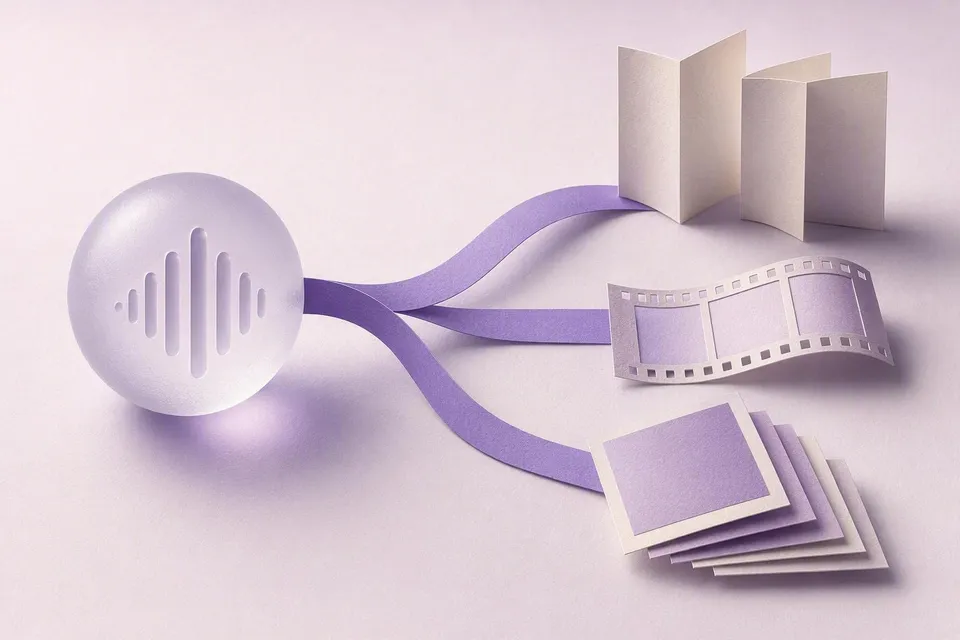
Understanding what happens between your voice and the finished text helps you get better results. EnviousWispr runs a three-stage pipeline, entirely on your Mac:
- Record. Hold the keybind, speak, release. The app captures raw audio from your microphone.
- Transcribe. Your speech is converted to text locally via Core ML, using on-device speech recognition. This is a literal transcription; every filler word, false start, and repeated phrase comes through.
- Post-process. An LLM cleans up the raw transcription. It strips filler words, fixes punctuation, corrects grammar, and keeps your voice. A short aside stays a clean line; a longer piece comes back as clean, readable prose (and, with Ollama, OpenAI, or Gemini polish on, with paragraph breaks and light structure).
The third step is where the writing happens. Raw transcription is messy. Post-processing is what turns “so basically what I’m trying to say is that like the pipeline has three steps and each one does a different thing” into a coherent sentence. You can read more about the technical details on the how EnviousWispr’s transcription pipeline works page.
The whole cycle takes a second or two on Apple Silicon. Fast enough that you don’t lose your train of thought waiting for output.
How the polish shapes your output
The post-processing does a solid job: it removes filler words, fixes punctuation, and produces clean sentences without flattening your voice. For most writing (blog drafts, journal entries, articles, freewriting) the output reads like you wrote it: conversational, direct, human.
When you need a specific shape, the way you talk is the lever. The polish reads what you said and matches it. A few patterns that work well for writers:
- Speak loosely for blog drafts and your natural voice and contractions stay intact, not formalized.
- Speak in fuller sentences for client deliverables and formal essays and the structure tightens.
- Keep morning pages as stream of consciousness and the polish leaves your flow alone, just cleaning up the worst of the filler.
The output adapts as your task changes (drafting one minute, client correspondence the next), with nothing to switch between dictations.
A realistic example: before and after
Here’s what this actually looks like in practice. The following is a raw transcription of someone dictating a section about morning routines:
Raw transcription (what you actually said)
So I’ve been thinking about like morning routines and how um most of the advice out there is kind of the same stuff right like wake up early meditate journal exercise and I’m not saying that’s wrong but the thing is what works for one person might not work for someone else and I think the the real key is actually figuring out what makes you feel ready for the day rather than just copying what some CEO does because like their life is completely different from yours and uh yeah I think people should experiment more and not feel bad if they don’t want to wake up at five am
After post-processing (what lands in your editor)
I’ve been thinking about morning routines and how most of the advice out there covers the same territory: wake up early, meditate, journal, exercise. I’m not saying that’s wrong. But what works for one person might not work for someone else.
The real key is figuring out what makes you feel ready for the day, rather than copying what some CEO does. Their life is completely different from yours. People should experiment more and not feel bad if they don’t want to wake up at 5am.
That’s roughly 500 words of dictation compressed into a tight, readable paragraph pair. The voice is preserved. The filler is gone. The structure is cleaner. And you didn’t type a single character. It reads like you, not like some algorithm’s idea of what you should sound like.
This is what makes dictation practical for real writing work: the post-processing step bridges the gap between how people talk and how people write.
Building a session rhythm
Once the pipeline feels natural, the real productivity comes from how you structure your sessions. Here’s what works:
Think in chunks, not full articles
Don’t try to dictate an entire 1,500-word post in one take. Dictate a section at a time: a single argument, one anecdote, a few related points. Review what the LLM gave you. Adjust if needed. Then dictate the next chunk.
This mirrors how most writers actually work. The keybind-based flow supports it naturally: hold, speak a section, release, review, repeat.
Use hands-free mode for freewriting
When you’re brainstorming or working through ideas, switch to hands-free mode by double-pressing your keybind. This locks recording on without you holding any keys. Pace around the room, talk through your argument, let the ideas come without stopping to check output. Press the keybind once to stop, or triple-press to cancel.
Come back later and edit the transcript into something usable. This is especially good for working through writer’s block. It’s harder to stare at a blank page when words are appearing on screen as you think out loud.
Edit after, not during
Resist the urge to fix every sentence as it appears. Dictate your full section first, then go back and edit. The point of voice drafting is to separate generation from editing. If you stop to rephrase after every paragraph, you lose the speed advantage.
When dictation works, and when it doesn’t
Honest take: dictation is not better than typing for everything. Here’s where each one wins.
Dictation wins when
- You’re generating first drafts. Getting ideas out of your head and onto the page is dramatically faster by voice. Most people speak 3-4x faster than they type.
- You’re working through arguments. Talking through a point helps clarify thinking in a way that staring at a cursor doesn’t.
- Your hands hurt. RSI is real. Dictation gives your wrists a break without stopping your output. We wrote a full guide on voice input for RSI if that’s your situation.
- You’re away from the keyboard. Pacing, standing, stretching. You can keep working without being chained to a desk. Your Mac Studio or MacBook Air picks up the audio just fine from across the room.
Typing wins when
- You’re doing precise editing. Moving sentences around, swapping individual words, adjusting formatting. This is mouse-and-keyboard territory.
- You’re writing code or technical syntax. Dictating variable names and brackets is slower than typing them.
- You’re in a noisy environment. Background noise degrades transcription accuracy. A quiet room produces much better results.
- You need exact formatting. Tables, nested lists, specific markdown structures. Speak the content, type the formatting.
The best workflow uses both. Dictate the rough draft. Type the edits. That’s the combination that saves the most time for most writers.
Getting started
Download EnviousWispr free, no account, no subscription required. It takes a couple of minutes to set up on any Apple Silicon Mac running macOS Sonoma or later. On first launch, grant microphone access and the speech model downloads automatically. No model selection needed. The source is also on GitHub.
Then try this: open whatever you’re working on, hold the keybind, and talk through your next paragraph. See what comes back. The more you speak in your natural voice, the more the output matches how you write.
Related Posts
- Dictate First Drafts That Sound Like You. How on-device polish preserves your voice during dictation.
- Dictation for Writers: Skip the Blank Page. Why speaking bypasses writer’s block.
- Getting Started with EnviousWispr in Under 2 Minutes. Full setup walkthrough from download to first dictation.
You might be surprised how quickly it becomes part of how you draft. Not a replacement for typing. Just a faster way to get the first version out of your head and onto the page.
Looking at other tools for writers? See vs WisprFlow, vs Superwhisper, or browse all comparisons.